Showing posts with label increase. Show all posts

Saturday, 29 October 2011

How to keep your PC computer running as fast as possible

Hello everyone, In today's post I am going to be looking at how you can keep your PC running as fast as possible without having to make any hardware changes at all. This guide will show you how to keep your PC software in top condition and keep it running quickly and efficiently. I will include some free programs that I currently use that keeps my PC running at top performance, Often my cheap computer will out perform more expensive ones because I take care of the software side of my PC.

The first step to increasing the performance of your PC is to make sure that there is no junk on the computer that will take up space and slow the hard drive performance down. To do this I recomend that you download and install CCleaner and CCEnhancer. Once you have downloaded them, Install CCleaner first and then install CCenhancer after. Once CCenhancer is installed open CCleaner and then on the left hand side tick all of the tick boxes apart from "Wipe free disk space"
Once you have ticked all the boxes apart from "Wipe free disk space" click on the tab at the top of that section that says "Applications" Once you have clicked that, Tick all of the boxes in the section that appears to make sure that you are removing all of the junk on your computer. If you would like under this section you can opt not to delete "Saved form information" and "Saved passwords" under Internet explorer, Firefox, Google chome, and Opera. This means that any saved passwords will still exist after you run this program.

Once you have selected all of the tick boxes click "Run cleaner" in the bottom right hand side of the screen. This will set the cleaner to work digging out and deleting all of the rubbish documents and folders that have built up over the course of using your PC. Once that section of the program has finished you can now move onto it's next part.

Click on the big icon on the left hand side that says registry. Once you have that section open, Click all of the tick boxes on the screen so that it cleans every section of the registry.
Once all of the tick boxes are selected, click on scan for issues. Once it has finished scanning a list of damaged/broken registry entries will be shown on the screen. You can now clock on fix selected issues and it will fix all the registry problems.

Now it is time to Defrag your hard drive to help regain the performance that it originally had before you installed and uninstalled programs and files. Defragging arranges the files and folders on the hard drive so that they are all in order which makes loading times much faster. Firstly download Defraggler. Once you have installed Defraggler open it and then click on the hard drive that you would like to defrag at the top of the screen as show in this image.
Once the drive has been selected click on the Defrag button that is located at the bottom left hand side of the program. This will set the program to defrag you hard drive. It is best to close as many programs as possible when doing this as that means that more of the files and folders can be defragged. Once it has started leave the computer and just let it finish this task on it's own as it can take quite a long time on a hard drive that hasn't been defragged often.

Once Defraggler has been finished it is often a good idea to run an Anti-Virus scan as well. I would suggest that you make sure your anti-virus program has the newest updates and virus definitions (which most programs do on there own anyway) and then run the program to do the most in-depth scan you can and let it complete it. As there are many different anti-virus programs out there I cannot really show you how to do this one in depth.

Once all of those tasks have been finished the computer should be a lot more responsive and fast running. I have bought back many PC's that people have thought to have been broken by using these 3 simple programs and everyone has been surprised at what a speed improvement they got.

Thanks for reading, Jack-O-Bytes

Related Articles;

Friday, 15 July 2011

Top 5 Free PC Tools and Software

Hey everyone, Today I am going to be looking at what I think is the top five free PC tools. There are many PC tools out there that are available for free and many that cost quite a lot. The ones that cost are usually the same as the free ones just with a few extra added features that most people can do without.

Avast Free Anti-Virus

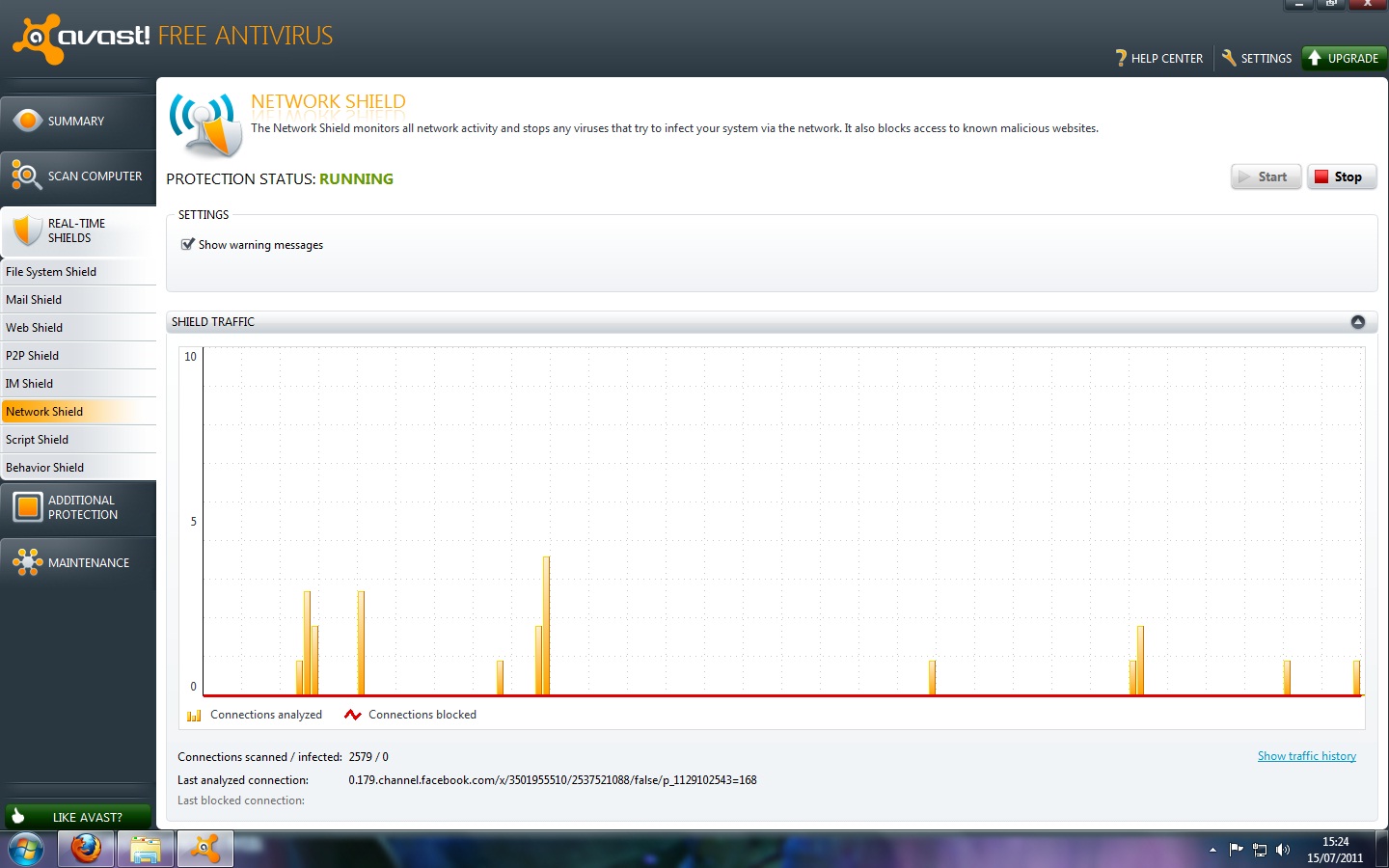
Avast free anti-virus can be downloaded from here it is 100% free and will run on computers that have the following windows operating systems; 2000, XP, 2003, Vista, and 7. I have been running this program on my computer now for around 8 months and I have not once had a virus in this time and I do a lot of downloading. It has a very sleek design and will easily be enough protection for most regular peoples needs. The only reason you would need more is if you are doing a lot of online banking and shopping with lots of different websites. Avast offers 8 different real time shields which include, File system shield, Web shield, P2P Shield, and Network shield. It also features a Behavior shield which will monitor how certain programs are behaving and then see if they are acting suspicious.

CCleaner Hard Drive Cleaner

CCleaner can be downloaded from here CCleaner is one of my favorite programs for when I am trying to speed up a computer. I have used CCleaner for around 2 years now and not once had any problems with it deleting anything that was important. When CCleaner has been installed it will delete any unnecessary files that have built up on your hard drive over time. This will free up space and also increase the speed of your computer as it no longer has to wade through all the other rubbish files to find the one it needs.

Auslogics Disk Defrag
This program is one of my favorite programs at the moment. It is only 4.5Mb to download from here it is quick to install and doesn't take much hard drive space which is always good. This program arranges the files on your computer so that they are easy to access by the hard drive. This means that they load quicker and will mean your computer will become faster. All you have to do with this Auslogics Disk Defrag is install it onto your computer and then run it. Click here for a guide on how to use CCleaner and Auslogics Disk defrag. Overall I think this little program from Auslogics is great and makes a noticeable difference to the speed and reactivity of your computer.
Quick StartUp

I really like this program. You can download it from here when you have installed it you will be given a list of programs that start up when you turn your computer on. Usually this list is very big if you have never optimized it before. You can un-tick the programs that you know you don't need at start up such as Java update and MSN Messenger. This will speed up your computer by making less programs start up when you boot and will keep less programs running in the background.

Filehippo Update Checker
I really like this program from Filehippo basically you download it from here and install it on your computer. Then when you run it, it scans the computer and finds any out of date software that you have and that they feature on their website. It will then open a list of these programs and you can download them from the filehippo website. Keeping programs up to date increases speed and performance and also keeps you safe from virus' and hackers that have found weaknesses in older programs. Overall it is a great little program that will help keep your computer fast and also keep out bad things.

Thanks for reading everyone and enjoy the new programs. Or read the related article below;
How to Speed up your Computer