Showing posts with label Laptop. Show all posts

Saturday, 29 October 2011

How to keep your PC computer running as fast as possible

Hello everyone, In today's post I am going to be looking at how you can keep your PC running as fast as possible without having to make any hardware changes at all. This guide will show you how to keep your PC software in top condition and keep it running quickly and efficiently. I will include some free programs that I currently use that keeps my PC running at top performance, Often my cheap computer will out perform more expensive ones because I take care of the software side of my PC.

The first step to increasing the performance of your PC is to make sure that there is no junk on the computer that will take up space and slow the hard drive performance down. To do this I recomend that you download and install CCleaner and CCEnhancer. Once you have downloaded them, Install CCleaner first and then install CCenhancer after. Once CCenhancer is installed open CCleaner and then on the left hand side tick all of the tick boxes apart from "Wipe free disk space"
Once you have ticked all the boxes apart from "Wipe free disk space" click on the tab at the top of that section that says "Applications" Once you have clicked that, Tick all of the boxes in the section that appears to make sure that you are removing all of the junk on your computer. If you would like under this section you can opt not to delete "Saved form information" and "Saved passwords" under Internet explorer, Firefox, Google chome, and Opera. This means that any saved passwords will still exist after you run this program.

Once you have selected all of the tick boxes click "Run cleaner" in the bottom right hand side of the screen. This will set the cleaner to work digging out and deleting all of the rubbish documents and folders that have built up over the course of using your PC. Once that section of the program has finished you can now move onto it's next part.

Click on the big icon on the left hand side that says registry. Once you have that section open, Click all of the tick boxes on the screen so that it cleans every section of the registry.
Once all of the tick boxes are selected, click on scan for issues. Once it has finished scanning a list of damaged/broken registry entries will be shown on the screen. You can now clock on fix selected issues and it will fix all the registry problems.

Now it is time to Defrag your hard drive to help regain the performance that it originally had before you installed and uninstalled programs and files. Defragging arranges the files and folders on the hard drive so that they are all in order which makes loading times much faster. Firstly download Defraggler. Once you have installed Defraggler open it and then click on the hard drive that you would like to defrag at the top of the screen as show in this image.
Once the drive has been selected click on the Defrag button that is located at the bottom left hand side of the program. This will set the program to defrag you hard drive. It is best to close as many programs as possible when doing this as that means that more of the files and folders can be defragged. Once it has started leave the computer and just let it finish this task on it's own as it can take quite a long time on a hard drive that hasn't been defragged often.

Once Defraggler has been finished it is often a good idea to run an Anti-Virus scan as well. I would suggest that you make sure your anti-virus program has the newest updates and virus definitions (which most programs do on there own anyway) and then run the program to do the most in-depth scan you can and let it complete it. As there are many different anti-virus programs out there I cannot really show you how to do this one in depth.

Once all of those tasks have been finished the computer should be a lot more responsive and fast running. I have bought back many PC's that people have thought to have been broken by using these 3 simple programs and everyone has been surprised at what a speed improvement they got.

Thanks for reading, Jack-O-Bytes

Related Articles;

Sunday, 17 July 2011

How to keep your laptop running cool

Hey everyone, In this post I am going to be looking at ways to help keep your laptop cool and stop overheating. When a computer or laptop is running it produces heat. If this heat is not taken away the laptop will just get hotter and hotter until something either burns out or the laptop shuts down to protect it self. Running a computer/laptop that keeps shutting down doesn't mean that it isn't damaging it.
Overheating a laptop often will shorten the lifespan and damaged components costing you in the long run. Follow these simple steps to keep your laptop cooler and running for longer. There are many products out there to help keep your laptop cool as well so there is no reason to have one that is overheating.

1) Check if the fans are working
The first thing to check when trying to keep your laptop cool is to see if the fans are working correctly. You can do this by running the laptop. It you hear the fans starting to spin up then they are working.


2) Check to see that there is sufficient air flow from the heatsink
If you can hear the fans spinning up loads and sounding very loud this should be accompanied with a warm air flow from the exhaust vent on the laptop. If there doesn't feel to be much air flow from the vent this means that the laptop is most likely clogged with dust. You can fix this by turning the laptop off and then blowing into the exhaust vent in short sharp bursts which will dislodge any excess dust or dirt on the coolers.


3) Make sure that their is a good air gap all round the laptop
Believe it or not laptops down work very well on your lap. They have air vents on the bottom that are covered when you are working with them on your legs which increases the chance of the laptop overheating. You can solve this problem by simply sitting with the laptop on a table or if you need it on your lap but a decent sized hardback book between you and the laptop. This will give the laptop room to breath and air airflow which will help to cool it.

4) If you are running demanding programs get a laptop cooling pad
You can get laptop cooling pads from almost any online computer shops or shops. These cooling pads generally have extra fans on them which will then blow onto the bottom of the laptop cooling it from below. These usually connect to the USB sockets on your laptop which will then power the extra cooling fans. There are many types that are all different sizes you will need to look for one that is a bit wider and longer than your laptop so it doesn't hang over the edge.

Thanks for reading. I hope that after following these simple tips you will have a cool and long lasting laptop.

Related Articles;

Thursday, 14 July 2011

AMD Radeon 6990M Introduction and Graphics Benchmark

This video is a quick demonstration and description of how the new Alienware M18X laptop uses the power of the AMD Radeon 6990M and 2Gb of GDDR5 RAM to produce the best gaming laptop in the world. The 6990M is the fastest single mobile graphics card on the market at the moment and this laptop can utilize two of them to produce mega performance in games and HD video.
This laptop surely is a proper gaming machine and with such portability I am very impressed with the power they have got in this thing.

Related Articles;

AMD Raises the Mobile Performance Bar with Radeon HD 6990M


Tuesday, 12 July 2011

AMD Raises the Mobile Performance Bar with Radeon HD 6990M

Introducing the Radeon HD 6990M

The battle for graphics supremacy has been going for well over a decade now, with several casualties of war along the way (RIP 3dfx, Trident, S3, etc.). The primary competitors continue to be NVIDIA and AMD, and with NVIDIA having recently reclaimed the single GPU performance crown on both desktops and laptops with their GTX 580/580M, it’s time for AMD to respond. We’re not presenting any details for next generation desktop parts at present, and in fact the HD 6990M isn’t much of a surprise, but either way AMD is ready to release the details of their next mobile GPU.

The price/performance ratio is actually pretty similar between AMD and NVIDIA mobile GPUs, and both have a decent number of design wins with notebook ODMs. The current mobile performance crown goes to NVIDIA’s recently launched GTX 580M, but along with the performance crown comes a hefty price and performance bill that needs to be paid. AMD’s top mobile part prior to today’s announcement is the 6970M, which is basically a lower clocked version of the desktop Barts core with some of the Stream processors disabled (essentially a mobile HD 6850). Our testing has shown the 6970M to offer just slightly less performance on average compared to the GTX 485M, but interestingly enough NVIDIA managed to use less power in low/idle loads than AMD. Of course, even the HD 6970M is a trimmed Barts core, and there’s still the desktop 6950/6970 Cayman core that has yet to see a mobile variant, which brings us to today’s announcement.

If you were hoping to see a truly crazy mobile GPU running off the Cayman architecture, we’re unfortunately not getting that. Unlike the desktop 6990, we’re also not talking about a dual-GPU in a single card solution. Instead, the HD 6990M will be a full Barts core, with all 1120 shaders enabled. (The closest desktop equivalent is the HD 6870, which comes clocked at 900MHz, 25% higher than the 6990M.) Besides the now-standard DX11 support that AMD has been shipping since the first HD 5000 parts, 6990M also includes HD3D (stereoscopic 3D), OpenCL 1.1, and DirectCompute 11 support. AMD groups many of the features under the umbrella of "AMD App Acceleration", though there's technically nothing new here as all the 5000M and 6000M DX11 parts use the same drivers and support nearly the same features.

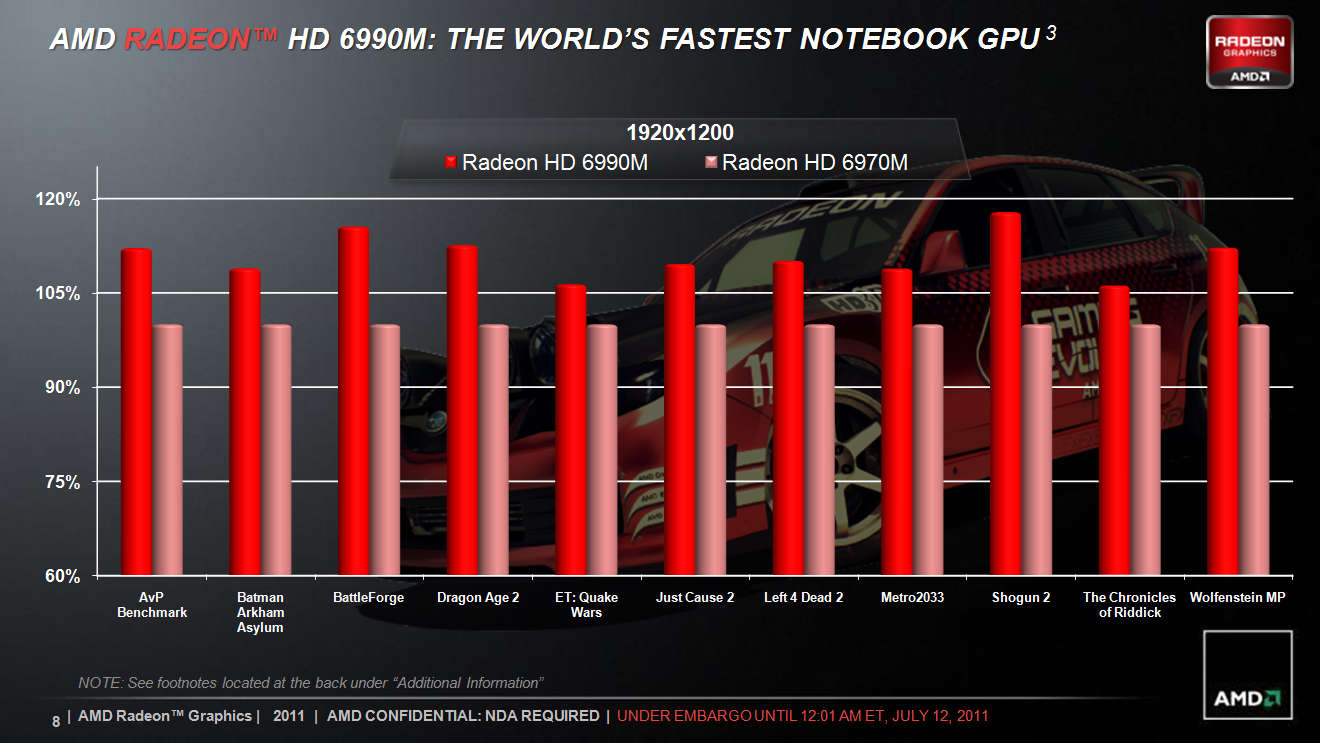
Looking at the mobile parts, the shader count gives the 6990M an immediate 17% boost in performance relative to the 6970M, and with a slightly higher cores clock as well (715MHz on the 6990M vs. 680MHz on the 6970M), we’re looking at up to 23% higher performance than the 6970M. Both the 6970M and 6990M continue to feature 3600MHz GDDR5 memory, although the 6990M comes with 2GB instead of 1GB. AMD also enabled OverDrive up to 740MHz for the 6990M if you want to try some quick overclocking. Here’s how performance between the AMD parts stacks up, according to AMD’s internal testing (using a desktop 3.4GHz Phenom II CPU):


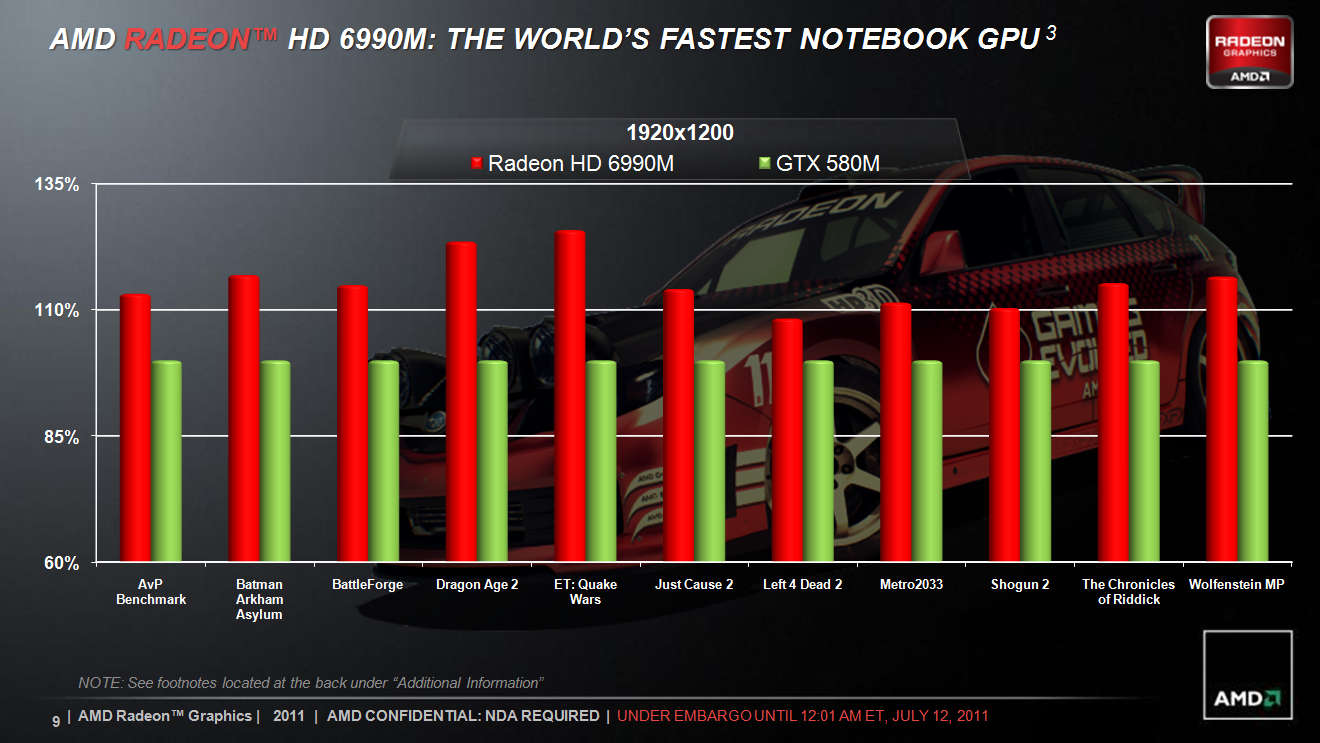
On the other side of the fence, NVIDIA’s GTX 580M has the same number of CUDA cores as the GTX 485M (384 cores), but with an 8% increase in clock speed. (The closets desktop equivalent is the GTX 560 Ti, which comes clocked 37% higher than the 580M.) Our earlier testing of the 485M and 6970M resulted in nearly identical average gaming performance across eight tested games, with both sides winning a few titles. In theory, then, HD 6990M should retake the mobile performance crown given the greater increase in compute and clock speeds relative to the second-tier parts. The following slide uses simulated performance (e.g. a downclocked desktop GTX 560 Ti GPU running at mobile speeds and with only 1GB GDDR5, again with a 3.4GHz Phenom II CPU), so take these results with a grain of salt:


Both the AMD and NVIDIA parts should be plenty fast for 1080p mobile gaming, so the real question is more likely to be who offers the best overall value. Sure, value in a gaming notebook is something of an oxymoron, but unless you absolutely need CUDA/PhysX support on the NVIDIA side or are looking at Bitcoin mining on the AMD side, performance is going to be close enough that pricing will sway the vote. Availability of the 6990M starts today, with the Alienware M18x coming in both single and CrossFire configurations. Clevo will also support the HD 6990M in their P170HM, P150HM, and X7200 notebooks, which means we’ll see whitebooks from the usual suspects like Eurocom, AVADirect, and others. Here's AMD's complete high-end mobile GPU lineup:

AMD Mobility Radeon 6800M and 6900M Lineup

Radeon HD 6990M Radeon HD 6970M Radeon HD 6950M Radeon HD 6870M Radeon HD 6850M
Model Name (Code Name) Blackcomb Pro (Barts) Blackcomb Pro (Barts) Blackcomb Pro (Barts) Granville Pro (Juniper) Granville Pro (Juniper)
Stream Processors 1120 960 960 800 800
Texture Units 56 48 48 40 40
ROPs 32 32 32 16 16
Core Clock 715MHz 680MHz 580MHz 675MHz 625MHz
Memory Clock 900MHz (3.6GHz) GDDR5 900MHz (3.6GHz) GDDR5 900MHz (3.6GHz) GDDR5 1000MHz (4.0GHz) GDDR5 1000MHz (4.0GHz) GDDR5
Memory Bus Width 256-bit 256-bit 256-bit 128-bit 128-bit
Memory Bandwidth 115.2GB/s 115.2GB/s 115.2GB/s 64GB/s 64GB/s
VRAM 2GB 1GB 1GB 1GB 1GB

As we've noted in the past, the 6000M consists of parts from both the Evergreen and Northern Islands series of graphics chips. For many users, the difference between the two isn't all that important, but Northern Islands does upgrade the video engine to UVD3 where Evergreen is UVD2.2. Also worth remembering is that the 6800M parts are really just renamed 5800M parts with slightly altered clocks in some cases, so they're not as attractive as the 6900M parts. Finally, the 6800M parts can come with either GDDR5 or DDR3, the latter being significantly slower and thus less desirable. Our table only uses the specs from GDDR5 variants, so if you're shopping for a 6800M make sure you get a GDDR5 model.

Outside of their newest mobile GPU, we also asked AMD about the current state of their switchable graphics on Intel platforms. AMD says they should have some partners releasing laptops with application based switching (e.g. similar to NVIDIA’s Optimus), but that will likely be with lower performance GPUs. In contrast, NVIDIA is touting Optimus support on certain GTX 580M configurations, though as always it’s up to the notebook vendors to utilize the feature. We haven’t had a chance to get hands on time with any form of AMD switchable graphics for some time, so the jury is still out. We hope to have an appropriate laptop for testing in the not-too-distant future, at which time we’ll be able to provide a better answer on which solution is the overall winner.
As for the question of who actually takes home the mobile gaming performance crown, we hope to have both GTX 580M and HD 6990M notebooks for testing in the coming weeks. On paper and using our previous 6970M and GTX 485M results, it looks like the 6990M should come out on top, but with various driver updates in the past several months we’re not ready to declare an official winner. If you’re looking for more than a few slides and potentially biased game selections, stay tuned: we’ll provide our usual in-depth look at real-world performance as soon as we can get hardware into our labs. Our money is still going to be on whoever can come in at a lower price point, and if recent history is any indication, that will likely be AMD with the 6990M. Update: Alienware now has both the GTX 580M SLI and HD 6990M CrossFire configurations available on their web site; at present, the SLI setup costs $700 more than the CrossFire configuration, which makes the 6990 an easy recommendation.

Tuesday, 17 May 2011

Lenovo X1 Announced Alongside An Edge Infused All-In-One

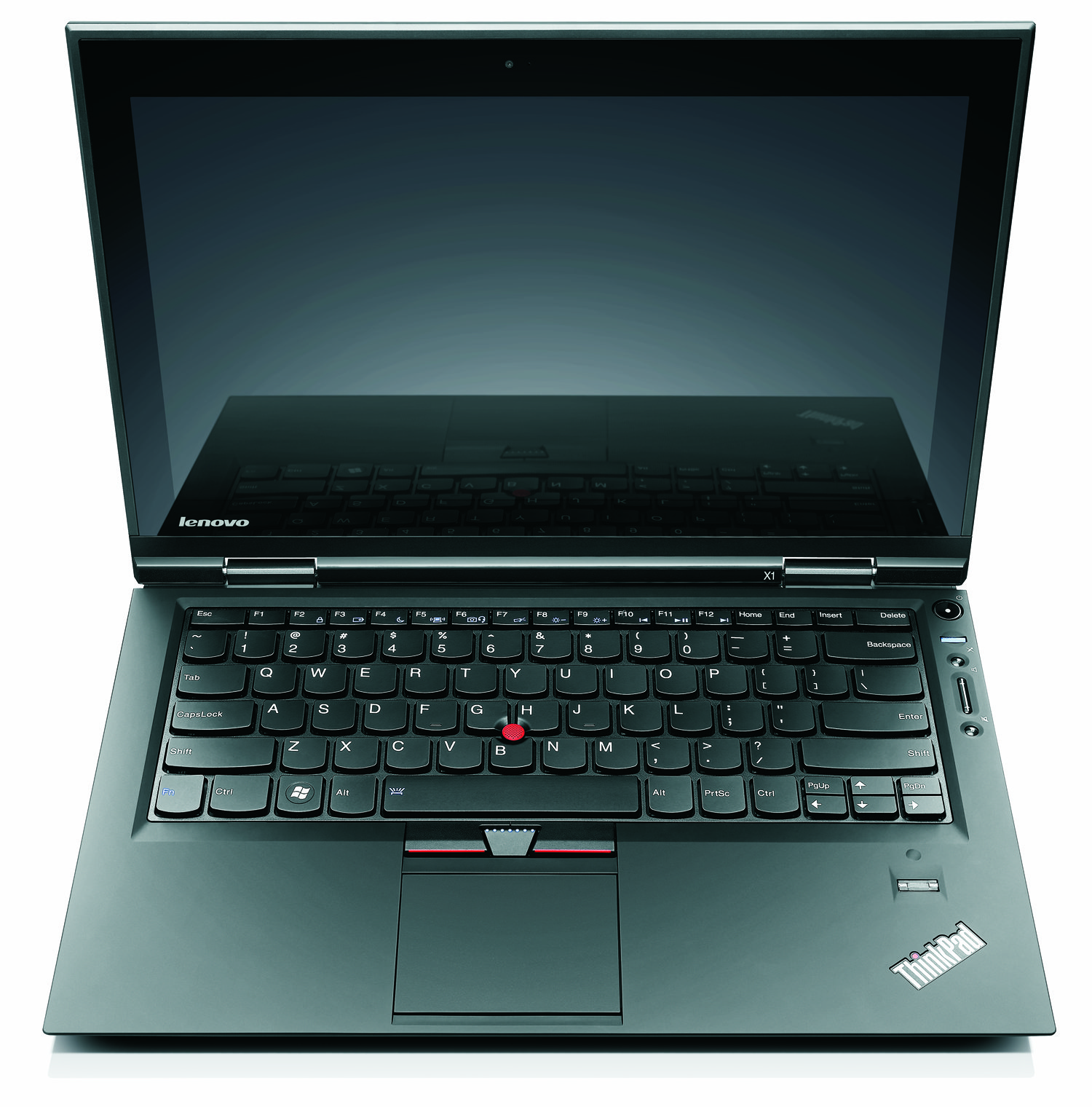
Today Lenovo brings thin and Sandy Bridge to your desks and your laps. Leaked last month, the Lenovo ThinkPad X1 will make a strong case for itself to corporate road warriors while also packing some features that might appeal to consumers. Lenovo also has the newly revealed ThinkCentre Edge 91z, which introduces the Edge aesthetic to the ThinkCentre all-in-one (AIO) line. The ThinkCentre's space-saving form factor and mix of desktop and mobile components should appeal to the IT at home users, and makes a nice addition to your desk. As review units roll in we will see just how well these measure up against their competition.

We'll start with a look at the Lenovo ThinkPad X1, which we saw leaks of recently. Leaks or no leaks, this ultraportable notebook turns out to pack some suprises in its svelte frame. Measuring 16.5mm at its thinnest (the front edge) and 21.5mm at its thickest (the back edge) the X1 will not compete for thinnest laptop on the market, but it may just be the thinnest with a full voltage Sandy Bridge mobile processor. The 13.3" screen is optimized for travelers with a pane of Corning's Gorilla Glass covering its TN-panel (we confirmed this with Lenovo Product Manager Jason Parrish) and peaking at a reported 350 nits at a resolution of 1366x768. We'll reserve judgment on the panel till we get our hands on it; truth is, in a market bereft of IPS displays, even a 768p TN-panel can land near the top of our display charts. In a move that many of you have been asking for on Apple's MacBook Pro line, Lenovo provides both mini-DisplayPort and HDMI for connectivity along with Intel's Wireless Display technology.

Saturday, 14 May 2011

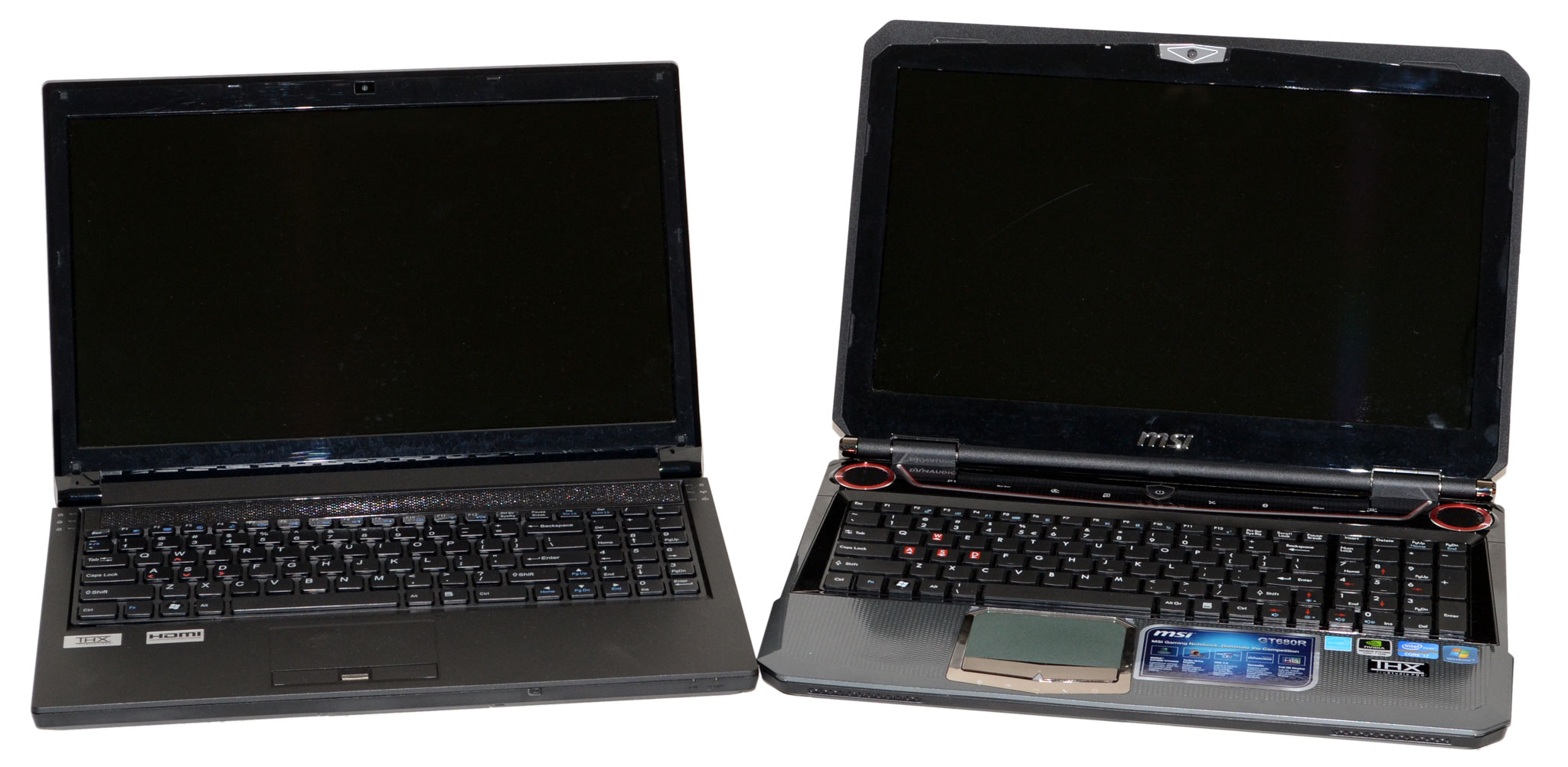
CyberPower's X6-9300 and MSI's GT680R: Fighting for Your Mobile Gaming Dollar

The Fight for Your Mobile Gaming Dollar

At a macro level, there really aren’t all that many viable gaming notebook options. These days, Sandy Bridge processors rule the roost in notebooks, with the quad-core variety handling everything from single-threaded to multi-threaded workloads with aplomb. On the graphics side, you can try to get by with midrange mobile GPUs, but if you’re serious about mobile gaming you’ll want at least something from NVIDIA’s GTX line or AMD’s 6900M alternatives. Take the CPU and GPU; match them up with reasonable memory, storage, display, and other accoutrements; and you’re all set. That all works very well in the desktop world, even if it glosses over many of the finer points that separate the contenders from the pretenders. In the mobile world, however, the little things matter.

Modern computers are very modular by design. We have standards for power, memory, storage, and peripherals and you can generally choose what fits your needs. With notebooks, however, a lot of flexibility gets sacrificed in the name of making a reasonably sized chassis. Not coincidentally, profit margins tend to be quite a bit higher for notebooks than desktops, which is why so many companies want a piece of the pie. While it’s still pretty easy to upgrade memory and storage options, swapping out the CPU for something faster is more difficult and you need to make sure the cooling setup can handle any additional heat. Upgrading your GPU on the other hand is difficult at best, and frequently impossible. The issue with mobile GPUs is that despite MXM being something of a standard, chip locations are left up to the implementation, so there’s no guarantee that, for example, an HD 6770M could be installed in place of a GT 540M. And as far as the LCD, keyboard, touchpad, motherboard, and chassis are concerned, you’re stuck with whatever you buy with no chance of upgrading individual parts in the future. (Okay, perhaps you could upgrade the LCD panel in some cases, but you get what we’re saying.)

Tuesday, 1 February 2011

A review of MSIs Sandy Bridge laptop, the GT680

When MSI unveiled the new GT680R gaming laptop at CES this year, the company touted it as one of the "fastest, most powerful gaming notebooks in the world." As one of the first laptops to take advantage of Intel's Sandy Bridge processor, this laptop definitely packs plenty of power. Under the hood, you'll find NVIDIA GeForce GTX 460M graphics with 1.5GB of video memory, 8GB of DDR3 system memory, and two 500GB 7,200rpm hard drives.

The GT680R isn't MSI's only new notebook to offer a Sandy Bridge processor. Like MSI's other products based on the second generation Core processors, the GT680R offers USB 3.0 connectivity as well as the MSI Turbo Drive Engine for easy, one-touch overclocking. This 15.6-inch laptop supports full HD (1980x1080) with its LED-backlit display. There's also a HDMI port for outputting content from the notebook onto larger displays. The GT680R also comes with Dynaudio speakers and THX TruStudio Pro for a more true-to-life sound quality experience.
Read the full review here.
www.customdesktops.moonfruit.com

Wednesday, 27 October 2010

How to speed up your computer using free available programs

This is a short guide one how to speed up your computer/laptop using free available tools that you can download and install quickly and easily.
  • Once you have done that close as many programs as possible. This will mean that CCleaner can work more efficiently and quicker as well. You will most likely have to close your Internet browser so it may be a good idea to bookmark this page so you can open it again.
  • Firstly open CCleaner and click the "Run Cleaner" button in the bottom right of the program. This will then clean out all of the temporary files and unused folders that build up on your computer over time. Once that has completed click on the "registry" tab on the left of the program and then click scan for issues at the bottom middle of the program. Once it has scanned it will have a list of broken/unneeded registry entries that will be slowing your computer down. Click fix selected issues in the bottom right of the program and then it will ask if you want to back up your registry. Click yes and save the file somewhere that you can access easily such as your documents. Another box will then come up. Click fix selected issues and then you are done with that program.
  • Next close CCleaner and open up Auslogics Registry defrag. Click on analyze in the bottom right of the program. It will then scan the registry for fragmented areas which will be slowing the computer down. Once it has done that click on the little "Defrag Now" button that comes up once scanning is complete. The computer will restart and automatically defrag the registry for you. Make sure that you do not switch of the computer during this process. Log back into the computer and then the registry defrag program will come back up. Click finish or just close the program.
  • Once you have closed Registry Defrag you now need to open Auslogics Disk Defrag. Once the program is open click on the down arrow that is next to the "defrag" button that is located near the top left of the program and then click "Defrag and Optimize" This part of the process may take a while but it will be well worth it at the end. Little blocks will start to apear on the program that are coloured either green or red. Red is the fragmented parts and green is the non fragmented parts. As the program runs the red will turn to blue which means Defragmented. Once the program has finished you are now ready to enjoy a speedy computer.
  • Thanks for reading and I hope you enjoy your new speedy computer, Jack-O-Bytes

www.customdesktops.moonfruit.com