Showing posts with label Performance. Show all posts

Saturday, 29 October 2011

How to keep your PC computer running as fast as possible

Hello everyone, In today's post I am going to be looking at how you can keep your PC running as fast as possible without having to make any hardware changes at all. This guide will show you how to keep your PC software in top condition and keep it running quickly and efficiently. I will include some free programs that I currently use that keeps my PC running at top performance, Often my cheap computer will out perform more expensive ones because I take care of the software side of my PC.

The first step to increasing the performance of your PC is to make sure that there is no junk on the computer that will take up space and slow the hard drive performance down. To do this I recomend that you download and install CCleaner and CCEnhancer. Once you have downloaded them, Install CCleaner first and then install CCenhancer after. Once CCenhancer is installed open CCleaner and then on the left hand side tick all of the tick boxes apart from "Wipe free disk space"
Once you have ticked all the boxes apart from "Wipe free disk space" click on the tab at the top of that section that says "Applications" Once you have clicked that, Tick all of the boxes in the section that appears to make sure that you are removing all of the junk on your computer. If you would like under this section you can opt not to delete "Saved form information" and "Saved passwords" under Internet explorer, Firefox, Google chome, and Opera. This means that any saved passwords will still exist after you run this program.

Once you have selected all of the tick boxes click "Run cleaner" in the bottom right hand side of the screen. This will set the cleaner to work digging out and deleting all of the rubbish documents and folders that have built up over the course of using your PC. Once that section of the program has finished you can now move onto it's next part.

Click on the big icon on the left hand side that says registry. Once you have that section open, Click all of the tick boxes on the screen so that it cleans every section of the registry.
Once all of the tick boxes are selected, click on scan for issues. Once it has finished scanning a list of damaged/broken registry entries will be shown on the screen. You can now clock on fix selected issues and it will fix all the registry problems.

Now it is time to Defrag your hard drive to help regain the performance that it originally had before you installed and uninstalled programs and files. Defragging arranges the files and folders on the hard drive so that they are all in order which makes loading times much faster. Firstly download Defraggler. Once you have installed Defraggler open it and then click on the hard drive that you would like to defrag at the top of the screen as show in this image.
Once the drive has been selected click on the Defrag button that is located at the bottom left hand side of the program. This will set the program to defrag you hard drive. It is best to close as many programs as possible when doing this as that means that more of the files and folders can be defragged. Once it has started leave the computer and just let it finish this task on it's own as it can take quite a long time on a hard drive that hasn't been defragged often.

Once Defraggler has been finished it is often a good idea to run an Anti-Virus scan as well. I would suggest that you make sure your anti-virus program has the newest updates and virus definitions (which most programs do on there own anyway) and then run the program to do the most in-depth scan you can and let it complete it. As there are many different anti-virus programs out there I cannot really show you how to do this one in depth.

Once all of those tasks have been finished the computer should be a lot more responsive and fast running. I have bought back many PC's that people have thought to have been broken by using these 3 simple programs and everyone has been surprised at what a speed improvement they got.

Thanks for reading, Jack-O-Bytes

Related Articles;

Wednesday, 20 July 2011

AMD to Update FX Lineup of Microprocessors in Q1 2012

After Advanced Micro Devices releases its FX-series microprocessors code-named Zambezi this September, the company will only refresh its lineup of high-end chips sometimes in the first quarter of next year. The first refresh of desktop Bulldozer family will likely precede the launch of Intel Corp.'s code-named Ivy Bridge microprocessors.

Despite of the fact that AMD's initial family of FX-series Bulldozer microprocessors will only include for models (two eight-core versions, one six-core and one quad-core models), AMD will not broaden it until at least the middle of the first quarter of next year, according to a source with knowledge of AMD's confidential plans. In mid-Q1 2012 AMD is projected to introduce four new models, which will broaden the FX lineup to eight stock-keeping units (SKUs).

The initial family of AMD desktop chips based on Bulldozer micro-architecture due in September will include models FX-8150, FX-8100, FX-6100 and FX-4100. The refresh lineup scheduled to arrive in mid-Q1 2011 will contain FX-8170, FX-8120, FX-6120 and FX-4120 models. Exact specifications of the AMD FX chips currently known only from unofficial sources.

Read More Here
Related Articles;
AMD Llano A8-3850 vs Intel Core i3 2120
AMD A-Series APU Dual Graphics Gaming Performance

Friday, 15 July 2011

Top 5 Free PC Tools and Software

Hey everyone, Today I am going to be looking at what I think is the top five free PC tools. There are many PC tools out there that are available for free and many that cost quite a lot. The ones that cost are usually the same as the free ones just with a few extra added features that most people can do without.

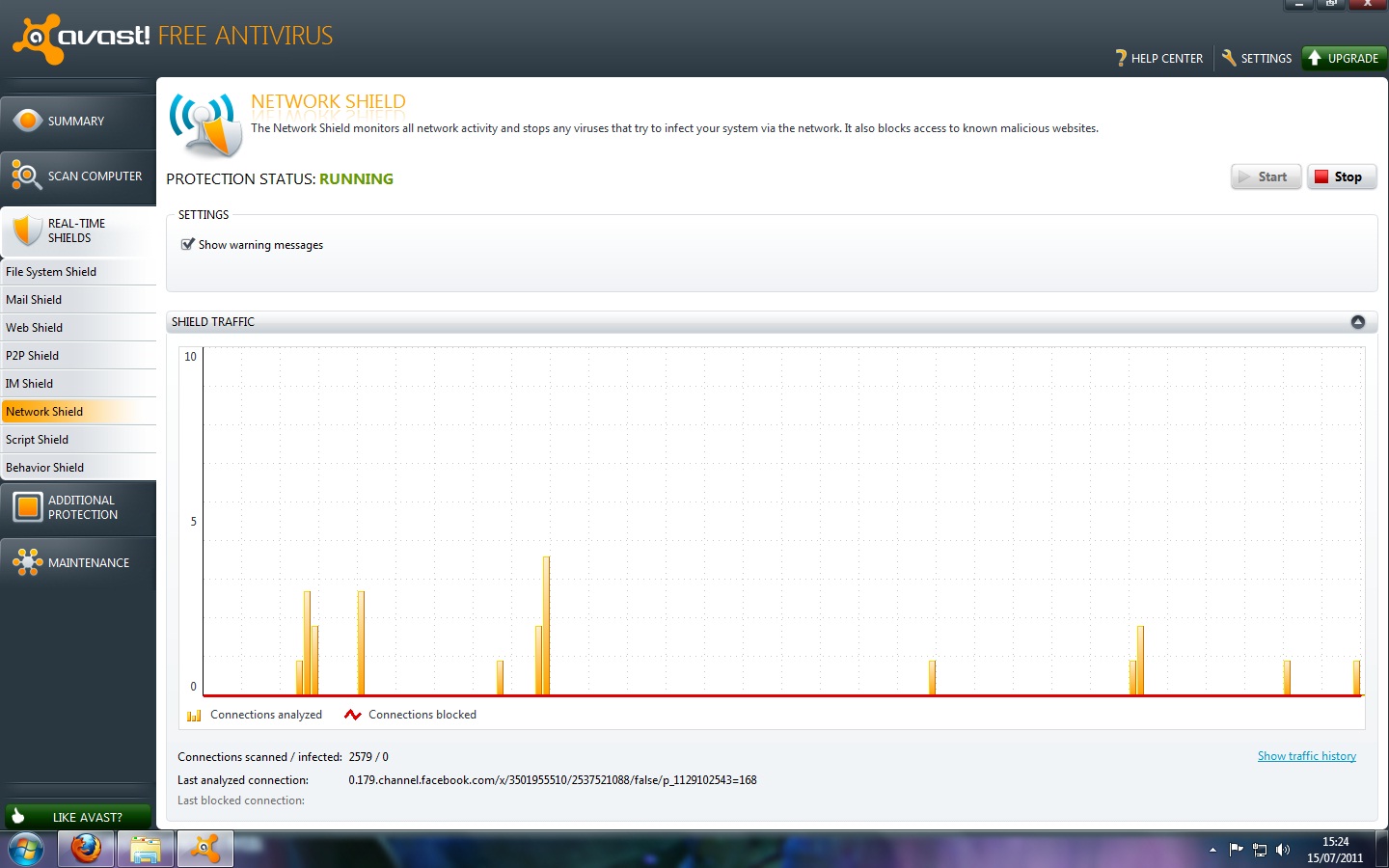
Avast Free Anti-Virus

Avast free anti-virus can be downloaded from here it is 100% free and will run on computers that have the following windows operating systems; 2000, XP, 2003, Vista, and 7. I have been running this program on my computer now for around 8 months and I have not once had a virus in this time and I do a lot of downloading. It has a very sleek design and will easily be enough protection for most regular peoples needs. The only reason you would need more is if you are doing a lot of online banking and shopping with lots of different websites. Avast offers 8 different real time shields which include, File system shield, Web shield, P2P Shield, and Network shield. It also features a Behavior shield which will monitor how certain programs are behaving and then see if they are acting suspicious.

CCleaner Hard Drive Cleaner

CCleaner can be downloaded from here CCleaner is one of my favorite programs for when I am trying to speed up a computer. I have used CCleaner for around 2 years now and not once had any problems with it deleting anything that was important. When CCleaner has been installed it will delete any unnecessary files that have built up on your hard drive over time. This will free up space and also increase the speed of your computer as it no longer has to wade through all the other rubbish files to find the one it needs.

Auslogics Disk Defrag
This program is one of my favorite programs at the moment. It is only 4.5Mb to download from here it is quick to install and doesn't take much hard drive space which is always good. This program arranges the files on your computer so that they are easy to access by the hard drive. This means that they load quicker and will mean your computer will become faster. All you have to do with this Auslogics Disk Defrag is install it onto your computer and then run it. Click here for a guide on how to use CCleaner and Auslogics Disk defrag. Overall I think this little program from Auslogics is great and makes a noticeable difference to the speed and reactivity of your computer.
Quick StartUp

I really like this program. You can download it from here when you have installed it you will be given a list of programs that start up when you turn your computer on. Usually this list is very big if you have never optimized it before. You can un-tick the programs that you know you don't need at start up such as Java update and MSN Messenger. This will speed up your computer by making less programs start up when you boot and will keep less programs running in the background.

Filehippo Update Checker
I really like this program from Filehippo basically you download it from here and install it on your computer. Then when you run it, it scans the computer and finds any out of date software that you have and that they feature on their website. It will then open a list of these programs and you can download them from the filehippo website. Keeping programs up to date increases speed and performance and also keeps you safe from virus' and hackers that have found weaknesses in older programs. Overall it is a great little program that will help keep your computer fast and also keep out bad things.

Thanks for reading everyone and enjoy the new programs. Or read the related article below;
How to Speed up your Computer

AMD A-Series APU Dual Graphics Gaming Performance

In this video we see how adding an AMD Radeon graphics card to an AMD 8-Series CPU can make gaming frame rates improve dramatically by running AMD's Crossfire technology with the APU helping out the graphics card in gaming.
As you can see AMD have managed to make gaming a relatively cheap thing since they have bought out the APU and the budget line of 6000 graphics cards.

Related Articles;
AMD A-Series APU Overclocking and Gaming Performance
AMD Llano A8-3850 vs Intel Core i3 2120

AMD A-Series APU Overclocking and Gaming Performance

In this video you see the new AMD A8 series CPU getting overclocked from 2.9GHz to 3.6Ghz. And a GPU frequency of 798MHz instead of the standard 600Mhz. They then benchmarked the results of this overclock to see what performance they gained.

As you can see the AMD 8-Series chips can handle overclocking really well and will increase performance a lot in games and real world situations.

Related Articles;
Unleash the full potential of AMD Radeon graphics with GDDR5 Ultra-Fast memory

Thursday, 14 July 2011

How to Speed up your Computer

Hello everyone, In this post I am going to give you a walk through guide on how to speed up your computer using some simple freely available software tools. These programs have all been personally used by me and I have found that they are all reliable and easy to use so any one can do it.

Firstly we are going to download the programs needed to speed up your computer. These programs work on Windows XP, Vista, and Windows 7. I am going to be using a windows XP computer as my windows 7 has a faulty PSU at the moment which I will hopefully be fixing soon which I will upload in a post.

CCleaner - http://filehippo.com/download_ccleaner/
Auslogics Disk Defrag - http://filehippo.com/download_auslogics_disk_defrag/

Once you have downloaded the programs to your computer you can begin to install them. This won't take long as they are only small software packages.

Installing CCleaner
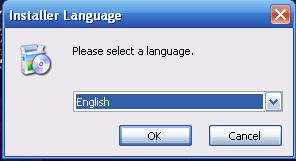
Firstly open where you have downloaded the install file to and then run it. This will open up a box that will say unpacking program. Depending on how fast your computer is you may not see this part. The first option that will come up is the language option. Simply select the language you need and then click OK.
Once you have selected the language click next a few more times and then you will get to the Install Options section. This is where you decide what the program installs and how you want it to run.
I usually leave all of them ticked as Piriform (the company that makes CCleaner) usually doesn't try to make you install a load of promotional add-ons that other companies do. Click install and the rest is done for you. Once it has finished un-tick the run CCleaner option and then click finish.

Installing Auslogics Disk Defrag
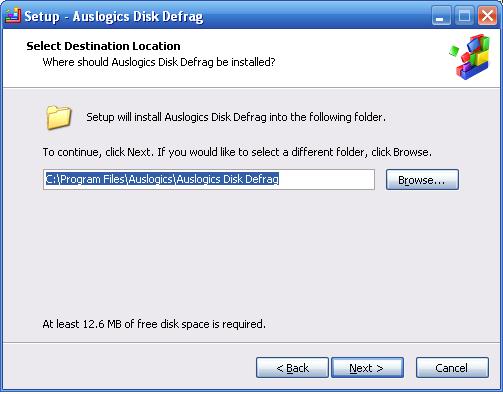
Once CCleaner has been installed it is time to install Auslogics Disk Defrag. This is a great program and is a lot better than the Disk defragger that comes standard with Windows. This is also the program that will speed up the computer the most. Once the install is started click next on the first window, Then click on the button that says "I accept the License agreement" and click next. You can now select where you want to install the program.
I usually change this to my faster E: drive but you can leave it on the standard C: drive and it will work fine. If you don't have enough free space on the C: drive then you can change the location by clicking the browse button. Once you are happy with where it is going to install click the next button three times and it will start the install. Once it has finished installing un-tick the "Launch Auslogics Disk Defrag" button so that it doesn't load up. Then click the finish button.


Running CCleaner
Now comes another easy part. Open up CCleaner so that you are at this stage.
Once you are hear you can select and de-select as many of the options as you want on the left hand side. I usually tick all of them apart from the "Wipe free space" as that way you free up the most space possible. If you don't know what any of the things are it is best to keep them set to standard. Once you are happy with the selection click on the "Run cleaner" button in the bottom right of the program. You will be told that this will delete items on your computer. Click OK. This will start the cleaner. Depending on how much junk there is on your computer this could take a long time to complete. The longest I have seen was about 10 minutes. Once that has completed click on the "Registry tab" on the left hand side. This is shown by the arrow on the image below.
Once the tab is open then you can click the "Scan for issues" button that is in the bottom middle of the program. Shown by the arrow below.
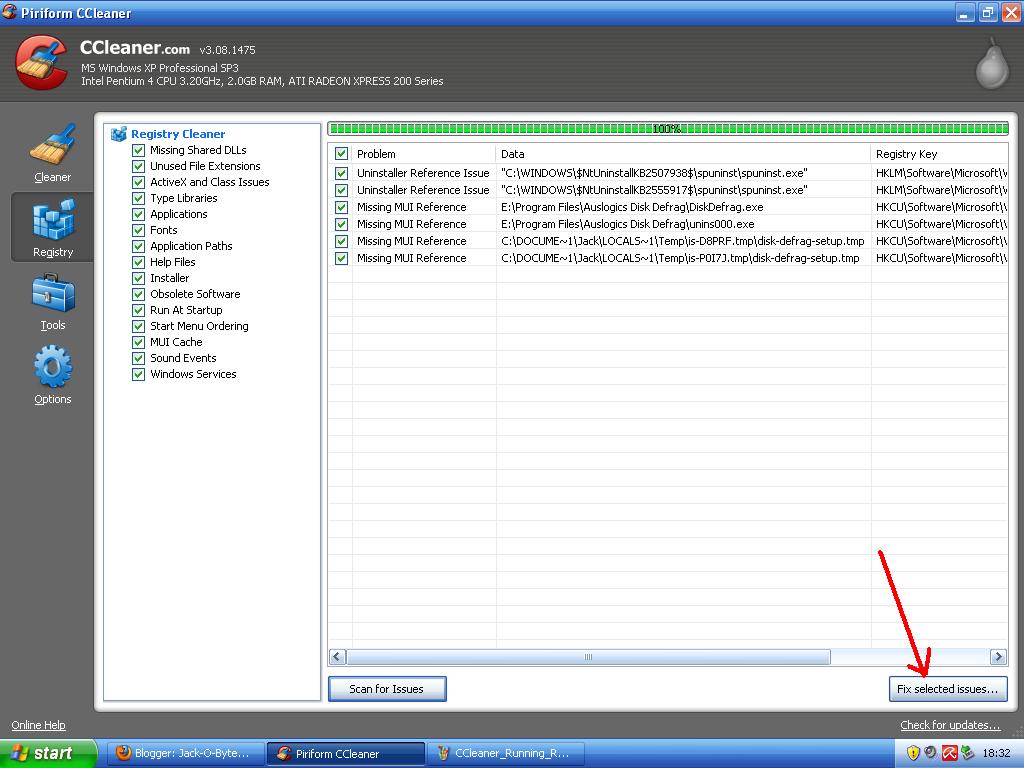
Once that scan has completed a list will appear of the damaged registry files.You will now need to click on the "Fix selected issues" button in the bottom right of the program. This is shown by the arrow in the image below. It will ask if you want to backup your registry click yes and then save the file somewhere in your documents.
Once this has been completed we are finished with CCleaner and can now move onto defragging the hard drive. This will speed up the computer if it hasn't been done before as it will arrange the files on your hard drive so that they are not spread out and so that they load quicker.

Running Auslogics Disk Defrag
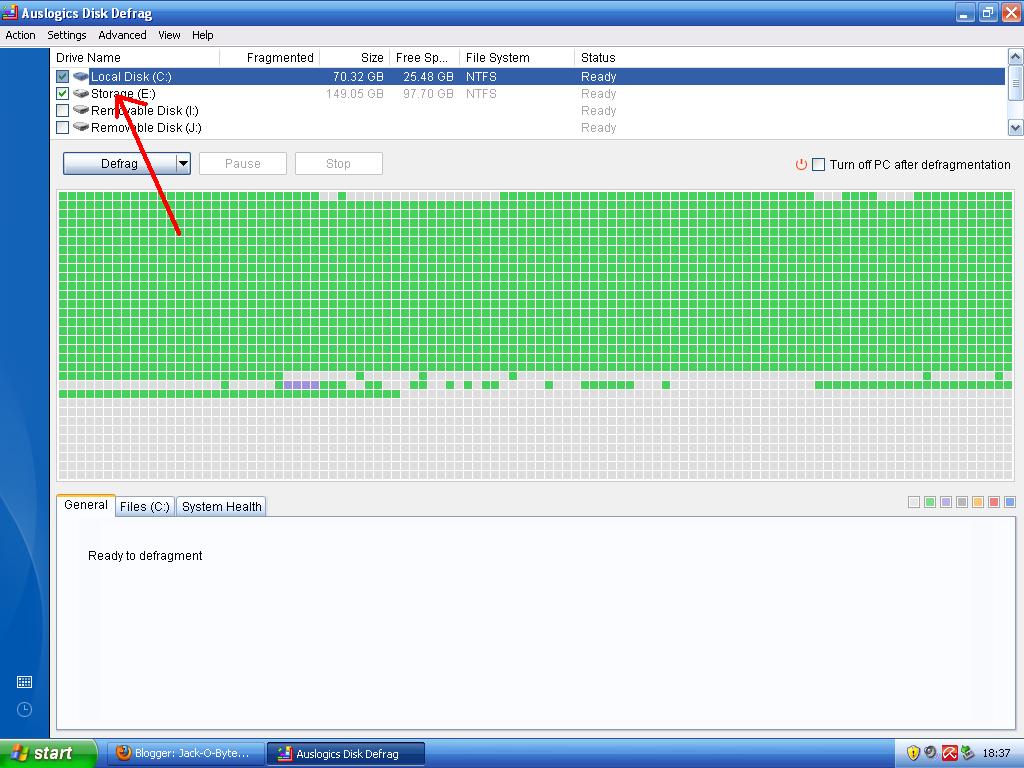
Open up Auslogics Disk Defrag and then select the drives that you use from the list at the top of the program.
Once you are happy with the drive selection simply click on the "Defrag" button or if you want you can hold the arrow down next to the "defrag" button and select "Defrag and Optimize" This will arrange the files in order of when they are needed so that windows loads up quicker and acts more responsive.
Once you have clicked on the button it will start defragging your computer. This could take anywhere between 10 minutes to 4 hours and depending on how long it runs will make a lot of difference to the performance of your PC. If it takes a long time then there was a lot to be defragged and it will speed up the PC loads. Once that program has finished defragging your computer you should have a much faster and smoother running PC. You will most likely notice the speed difference as well.
Thanks for reading and I hope that you have found these instructions useful.

Related Articles;
How to speed up your computer using freely available programs - Old Version of this post

Wednesday, 13 July 2011

AMD Llano A8-3850 vs Intel Core i3 2120

I have recently been looking at the performance of the new AMD Llano CPU's. Having looked at a few benchmark videos and bench mark results I decided to compare an Intel CPU and an AMD CPU that both cost the same amount of money (well as close as I could get on the eBuyer website)
The two CPU's I chose were the AMD Llano A8-3850 and the Intel Core i3 2120 CPU. Both of which are of the latest CPU's from each company and both cost around the same sort of price. The intel CPU being £6 more. Here are the 2 CPU's on the eBuyer website;

http://www.ebuyer.com/product/272282
http://www.ebuyer.com/product/254978


AMD Llano A8-3850 Specifications
Core Speed - 2.9Ghz
Number of cores - 4
Number of threads - 4
Cache - 4mb
Intergrated Graphics - 6550D
Graphics Frequency - 600MHz

Intel Core i3 2120 Specifications
Core Speed - 3.3GHz
Number of core - 2
Number of threads - 4
Cache - 3Mb
Intergrated graphics - Intel HD 2000
Graphics Frequency - 850Mhz

As you can see the AMD CPU has 4 real cores whereas the Intel CPU only has 2 real cores and Hyper Threading. This might make a noticeable difference in the CPU benchmarks later on.

I first went on the the CPU benchmark site called www.cpubenchmark.net this site has bench marks for pretty much every CPU that there is and is based on results that are got from it's own benchmark program called Passmark Performance test. Every time someone runs the program it uploads the results from the CPU and graphics card tests to this website. These are the benchmark results for both of the CPU's. Bearing in mind that the graphics side of the chips are not taken into account on this test.

AMD Llano A8-3850 - 4786
Intel Core i3 2120 - 3943

As you can see the AMD is already way ahead with basic CPU performance. It is around 21% faster for £6 less cost. This clearly makes the A8-3850 a better option for just CPU performance.

Now I am going to look at the graphical performance of each CPU. I couldn't find much data really about the graphics performance however I did find a couple of videos of each CPU running  games. (I know the intel one is based on the 2100 but that is because I couldn't find 2120 specific results)

Here is the AMD Llano A8-3850 running Crysis 2 without the aid of a graphics card


Here is the Intel Core i3 2120 running Dirt 3 without a graphics card


As you can see the Intel CPU is running the graphics on low with a resolution of only 1024x768 which is pretty feeble. The AMD A8-3850 is running Crysis 2 (known for being demanding) It is also running a second benchmark program in the background of the game loading 2 of the cores to 100% as well.

Overall I think that AMD have really hit the spot with the new APU series of processors that they have developed. They are definatly cheaper than the Intel equivalent and also seem to offer some very good performance as well. If AMD carry on this way with there higher performance CPU's in the future I am pretty sure that they will earn a lot of money of this great design.

Tuesday, 12 July 2011

AMD Raises the Mobile Performance Bar with Radeon HD 6990M

Introducing the Radeon HD 6990M

The battle for graphics supremacy has been going for well over a decade now, with several casualties of war along the way (RIP 3dfx, Trident, S3, etc.). The primary competitors continue to be NVIDIA and AMD, and with NVIDIA having recently reclaimed the single GPU performance crown on both desktops and laptops with their GTX 580/580M, it’s time for AMD to respond. We’re not presenting any details for next generation desktop parts at present, and in fact the HD 6990M isn’t much of a surprise, but either way AMD is ready to release the details of their next mobile GPU.

The price/performance ratio is actually pretty similar between AMD and NVIDIA mobile GPUs, and both have a decent number of design wins with notebook ODMs. The current mobile performance crown goes to NVIDIA’s recently launched GTX 580M, but along with the performance crown comes a hefty price and performance bill that needs to be paid. AMD’s top mobile part prior to today’s announcement is the 6970M, which is basically a lower clocked version of the desktop Barts core with some of the Stream processors disabled (essentially a mobile HD 6850). Our testing has shown the 6970M to offer just slightly less performance on average compared to the GTX 485M, but interestingly enough NVIDIA managed to use less power in low/idle loads than AMD. Of course, even the HD 6970M is a trimmed Barts core, and there’s still the desktop 6950/6970 Cayman core that has yet to see a mobile variant, which brings us to today’s announcement.

If you were hoping to see a truly crazy mobile GPU running off the Cayman architecture, we’re unfortunately not getting that. Unlike the desktop 6990, we’re also not talking about a dual-GPU in a single card solution. Instead, the HD 6990M will be a full Barts core, with all 1120 shaders enabled. (The closest desktop equivalent is the HD 6870, which comes clocked at 900MHz, 25% higher than the 6990M.) Besides the now-standard DX11 support that AMD has been shipping since the first HD 5000 parts, 6990M also includes HD3D (stereoscopic 3D), OpenCL 1.1, and DirectCompute 11 support. AMD groups many of the features under the umbrella of "AMD App Acceleration", though there's technically nothing new here as all the 5000M and 6000M DX11 parts use the same drivers and support nearly the same features.

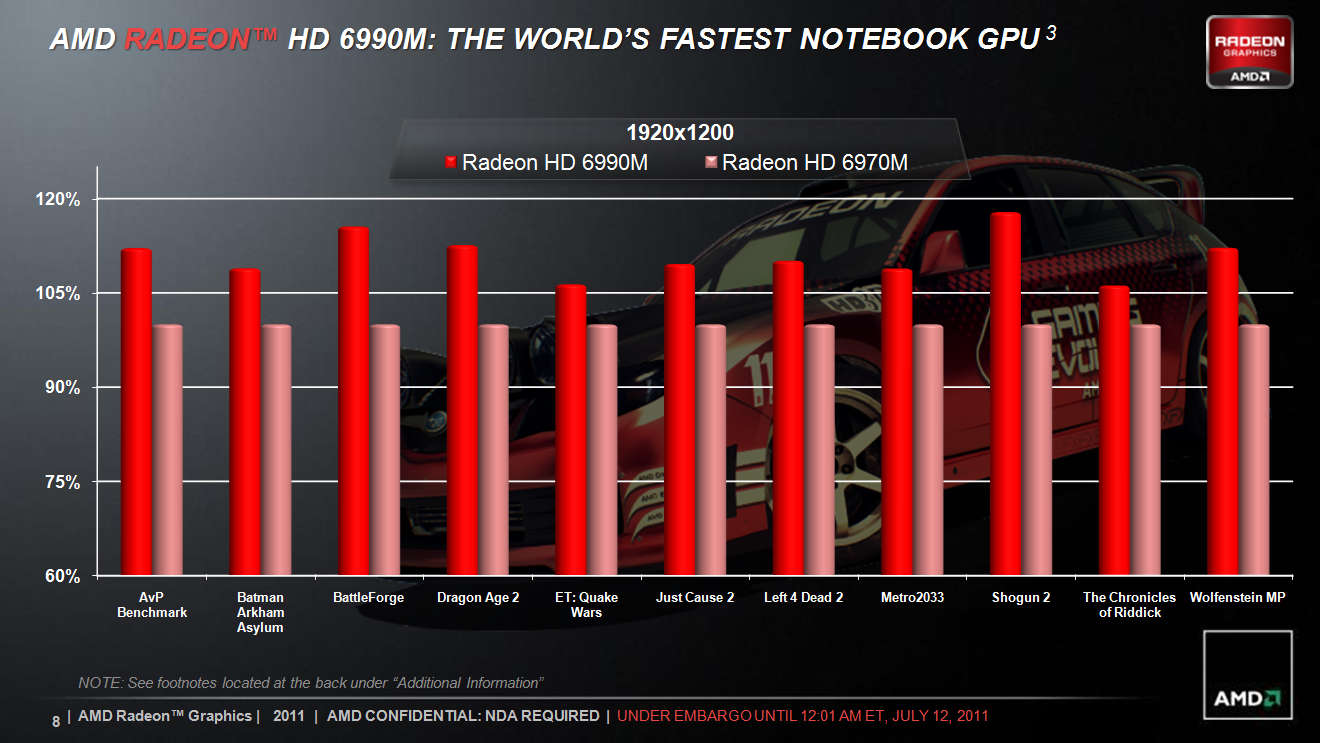
Looking at the mobile parts, the shader count gives the 6990M an immediate 17% boost in performance relative to the 6970M, and with a slightly higher cores clock as well (715MHz on the 6990M vs. 680MHz on the 6970M), we’re looking at up to 23% higher performance than the 6970M. Both the 6970M and 6990M continue to feature 3600MHz GDDR5 memory, although the 6990M comes with 2GB instead of 1GB. AMD also enabled OverDrive up to 740MHz for the 6990M if you want to try some quick overclocking. Here’s how performance between the AMD parts stacks up, according to AMD’s internal testing (using a desktop 3.4GHz Phenom II CPU):


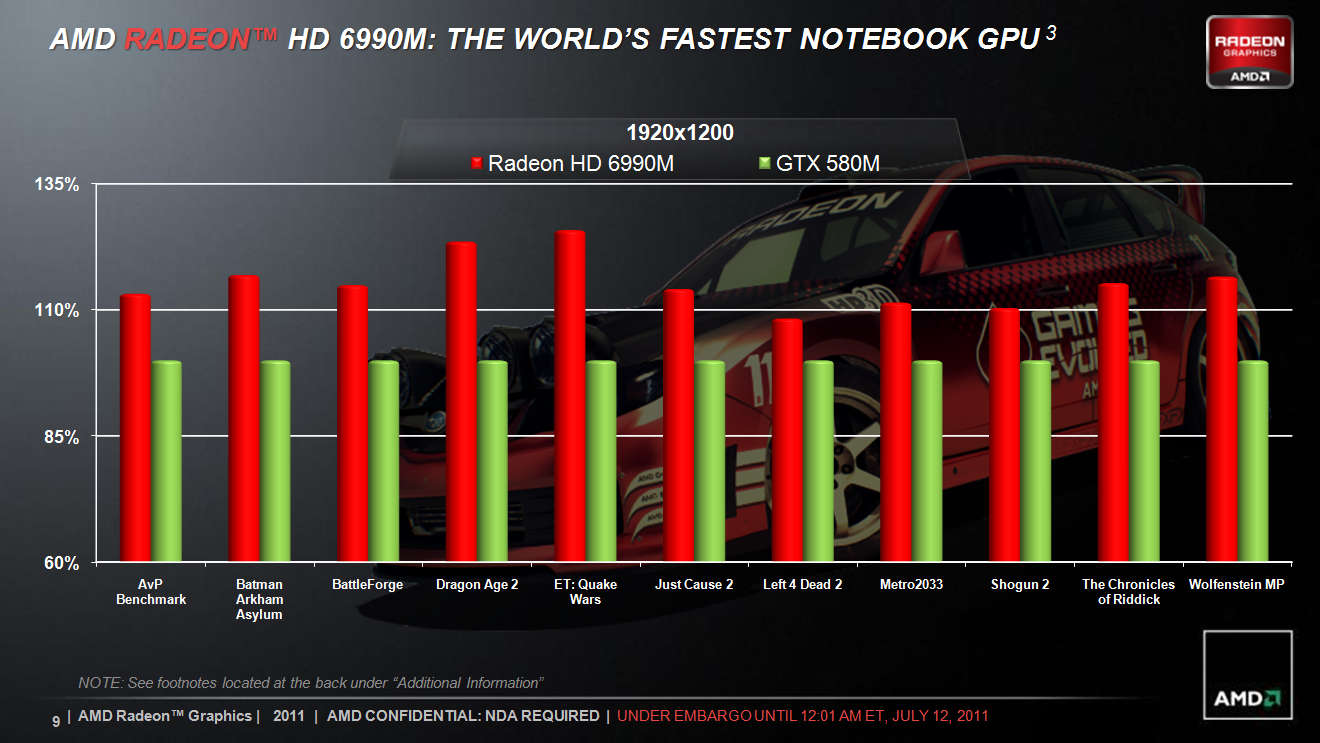
On the other side of the fence, NVIDIA’s GTX 580M has the same number of CUDA cores as the GTX 485M (384 cores), but with an 8% increase in clock speed. (The closets desktop equivalent is the GTX 560 Ti, which comes clocked 37% higher than the 580M.) Our earlier testing of the 485M and 6970M resulted in nearly identical average gaming performance across eight tested games, with both sides winning a few titles. In theory, then, HD 6990M should retake the mobile performance crown given the greater increase in compute and clock speeds relative to the second-tier parts. The following slide uses simulated performance (e.g. a downclocked desktop GTX 560 Ti GPU running at mobile speeds and with only 1GB GDDR5, again with a 3.4GHz Phenom II CPU), so take these results with a grain of salt:


Both the AMD and NVIDIA parts should be plenty fast for 1080p mobile gaming, so the real question is more likely to be who offers the best overall value. Sure, value in a gaming notebook is something of an oxymoron, but unless you absolutely need CUDA/PhysX support on the NVIDIA side or are looking at Bitcoin mining on the AMD side, performance is going to be close enough that pricing will sway the vote. Availability of the 6990M starts today, with the Alienware M18x coming in both single and CrossFire configurations. Clevo will also support the HD 6990M in their P170HM, P150HM, and X7200 notebooks, which means we’ll see whitebooks from the usual suspects like Eurocom, AVADirect, and others. Here's AMD's complete high-end mobile GPU lineup:

AMD Mobility Radeon 6800M and 6900M Lineup

Radeon HD 6990M Radeon HD 6970M Radeon HD 6950M Radeon HD 6870M Radeon HD 6850M
Model Name (Code Name) Blackcomb Pro (Barts) Blackcomb Pro (Barts) Blackcomb Pro (Barts) Granville Pro (Juniper) Granville Pro (Juniper)
Stream Processors 1120 960 960 800 800
Texture Units 56 48 48 40 40
ROPs 32 32 32 16 16
Core Clock 715MHz 680MHz 580MHz 675MHz 625MHz
Memory Clock 900MHz (3.6GHz) GDDR5 900MHz (3.6GHz) GDDR5 900MHz (3.6GHz) GDDR5 1000MHz (4.0GHz) GDDR5 1000MHz (4.0GHz) GDDR5
Memory Bus Width 256-bit 256-bit 256-bit 128-bit 128-bit
Memory Bandwidth 115.2GB/s 115.2GB/s 115.2GB/s 64GB/s 64GB/s
VRAM 2GB 1GB 1GB 1GB 1GB

As we've noted in the past, the 6000M consists of parts from both the Evergreen and Northern Islands series of graphics chips. For many users, the difference between the two isn't all that important, but Northern Islands does upgrade the video engine to UVD3 where Evergreen is UVD2.2. Also worth remembering is that the 6800M parts are really just renamed 5800M parts with slightly altered clocks in some cases, so they're not as attractive as the 6900M parts. Finally, the 6800M parts can come with either GDDR5 or DDR3, the latter being significantly slower and thus less desirable. Our table only uses the specs from GDDR5 variants, so if you're shopping for a 6800M make sure you get a GDDR5 model.

Outside of their newest mobile GPU, we also asked AMD about the current state of their switchable graphics on Intel platforms. AMD says they should have some partners releasing laptops with application based switching (e.g. similar to NVIDIA’s Optimus), but that will likely be with lower performance GPUs. In contrast, NVIDIA is touting Optimus support on certain GTX 580M configurations, though as always it’s up to the notebook vendors to utilize the feature. We haven’t had a chance to get hands on time with any form of AMD switchable graphics for some time, so the jury is still out. We hope to have an appropriate laptop for testing in the not-too-distant future, at which time we’ll be able to provide a better answer on which solution is the overall winner.
As for the question of who actually takes home the mobile gaming performance crown, we hope to have both GTX 580M and HD 6990M notebooks for testing in the coming weeks. On paper and using our previous 6970M and GTX 485M results, it looks like the 6990M should come out on top, but with various driver updates in the past several months we’re not ready to declare an official winner. If you’re looking for more than a few slides and potentially biased game selections, stay tuned: we’ll provide our usual in-depth look at real-world performance as soon as we can get hardware into our labs. Our money is still going to be on whoever can come in at a lower price point, and if recent history is any indication, that will likely be AMD with the 6990M. Update: Alienware now has both the GTX 580M SLI and HD 6990M CrossFire configurations available on their web site; at present, the SLI setup costs $700 more than the CrossFire configuration, which makes the 6990 an easy recommendation.

Tuesday, 1 February 2011

PSA: Intel recalls its 6-Series Sandy Bridge Chipset due to serious flaw.

Intel has today announced that its 6-series chipset, for use with the Sandy Bridge processors released earlier this year, has a serious flaw and that the company is recalling and replacing the affected parts. The chipsets, which provide PCI Express, USB, and other connectivity to the processor, have a problem in their SATA controllers causing performance to degrade over time.

In its statement, the company states that customers who have taken delivery of systems with the P67 and H67 "Cougar Point" chipsets can continue to use their systems "with confidence," suggesting that the flaw is restricted to a performance issue and cannot cause data loss. Nonetheless, such users should contact their computer manufacturers to obtain a fixed system.

The flawed chipsets are no longer shipping from Intel, and the company has already started manufacturing corrected versions. These will reach customers by the end of February. Full production volume won't be achieved until April. Intel estimates that the full financial cost of the error will be around $700 million, with $300 million of that incurred during the first quarter due to the production interruption. The company has adjusted its investor guidance accordingly.

via ArsTechnica
www.customdesktops.moonfruit.com

Wednesday, 27 October 2010

How to speed up your computer using free available programs

This is a short guide one how to speed up your computer/laptop using free available tools that you can download and install quickly and easily.
  • Once you have done that close as many programs as possible. This will mean that CCleaner can work more efficiently and quicker as well. You will most likely have to close your Internet browser so it may be a good idea to bookmark this page so you can open it again.
  • Firstly open CCleaner and click the "Run Cleaner" button in the bottom right of the program. This will then clean out all of the temporary files and unused folders that build up on your computer over time. Once that has completed click on the "registry" tab on the left of the program and then click scan for issues at the bottom middle of the program. Once it has scanned it will have a list of broken/unneeded registry entries that will be slowing your computer down. Click fix selected issues in the bottom right of the program and then it will ask if you want to back up your registry. Click yes and save the file somewhere that you can access easily such as your documents. Another box will then come up. Click fix selected issues and then you are done with that program.
  • Next close CCleaner and open up Auslogics Registry defrag. Click on analyze in the bottom right of the program. It will then scan the registry for fragmented areas which will be slowing the computer down. Once it has done that click on the little "Defrag Now" button that comes up once scanning is complete. The computer will restart and automatically defrag the registry for you. Make sure that you do not switch of the computer during this process. Log back into the computer and then the registry defrag program will come back up. Click finish or just close the program.
  • Once you have closed Registry Defrag you now need to open Auslogics Disk Defrag. Once the program is open click on the down arrow that is next to the "defrag" button that is located near the top left of the program and then click "Defrag and Optimize" This part of the process may take a while but it will be well worth it at the end. Little blocks will start to apear on the program that are coloured either green or red. Red is the fragmented parts and green is the non fragmented parts. As the program runs the red will turn to blue which means Defragmented. Once the program has finished you are now ready to enjoy a speedy computer.
  • Thanks for reading and I hope you enjoy your new speedy computer, Jack-O-Bytes

www.customdesktops.moonfruit.com