Showing posts with label 7. Show all posts

Sunday, 17 July 2011

Budget CPU Coolers Reviewed

Hey everyone, In this post I am going to be taking a look at some of the cheaper CPU coolers and heatsinks that are currently on the market. I will be including Specs of each of the Coolers and also if I can find any temperature comparisons online then I will put them in as well.

Xilence XilentBlade Pro

The Xilence XilentBlade pro is one of the cheapest performance heatsinks that is available on the market today. It can cool CPU's upto the Intel Core 2 Quad Q9650 and the AMD Phenom x3 8750. It costs just under £15 ($25) and looks very well built. It has 6 large heatpipes and that fan that is included can move 36cfm of air which means that it will cools most CPU's very well. The design is pretty boring to be honest and just has a huge square block of aluminum fins and a Red and Black fan attached to it so nothing too fancy. Overall I would think that this cooler would be brilliant for cooling Dual Core CPU's that use under 95w of power and for £15 who can complain? Great cooler by Xilence. This cooler can be used on Sockets 775, 1366, AM2, AM2+ and AM3.
This cooler can be found here - http://www.ebuyer.com/product/176093
Xilence XilentBlade Pro
Arctic Cooling Freezer 7 Pro
This CPU cooler design has been around for ages and has earned it self a lot of praise from overclockers over the last couple of years. Arctic has really managed a great budget cooler with this design and you can pick one up for around £15 just like the Xilence XilentBlade. This cooler can be used on Sockets 775, 1156, 1366, AM2, AM3. It has 6 heatpipes and 42 fins for optimal cooling performance and can cool CPU's up to 130w which means pretty much every CPU made currently. It has a 92mm fan on the front of it which is mounted on rubber mounts to stop vibrations. The fan can push 45cfm which is pretty impressive. Overall Arctic cooling has done a very good job at making a Budget CPU cooler and I am very impressed with the quality of this as well as I have used on before.
You can find this CPU here - http://www.ebuyer.com/product/176157
Arctic Cooling Freezer 7 Pro
Zalman CNPS7000C-CU Super Flower
The Zalman CNPS700C-CU is a bit of an out of date design now. I remember having one that was cooling my Athlon XP CPU ages ago. This one looks pretty much exactly the same only it fits different sockets. It will fit the following CPU sockets; AM2, AM2+, AM3, 754, 939, and 940, 775, 1156, 1155 This Cooler features 2890sq/cm of surface area which means that it has a lot of surface to dissipate heat. I couldn't find out how much CFM the fan pushed even on the Zalman website so I can't really make much of a judgement on this cooler to be honest. Overall it is a little outdated now but if you have a computer with maybe a 754 or 939 motherboard then this is still a perfectly good option.
This cooler can be found here - http://www.ebuyer.com/product/153203

Zalman CNPS7000C-CU Cooler

Inno3D iChill XXXX
Inno3D isn't a well known cooler manufacture, They are more specialized at producing cheaper graphics cards. However when I saw this cooler I was amazed that they could produce it so cheap and yet have such good specifications. There are  the specs of this cooler;

Max. Air Flow - 45CFM
Noise - 23-39dB
TDP Limit - 140W
Intel: i7 / i5 / i3 / Socket 1366 / 1156 / 1155/ 775
AMD: Socket AM3 / AM2+ / 939

As you can see from the specifications it has a high flow fan and can cool CPU's up to 140w which is very good. It also has 6 heatpipes to aid heat dissipation from the CPU. Overall this cooler is very good for £17 and it looks like it would do a very decent job of cooling every CPU available today.
This Cooler can be found here - http://www.ebuyer.com/product/244150
Inno3D Ichill XXXX
Overall there are various coolers that would most likely do a good job at cooling your CPU and for under £20, I was amazed at what I found. I would recommend the Inno3D iChill and the Arctic Cooling above the others but those are still capable CPU coolers anyway so there is no need to say they are not good because they are. All great designs and all aimed at the budget market.

Related Articles;
How to keep your PC running cool and quiet - Case fans and Cases
PCI Blower Exhaust Fan Graphics Card Cooler Review

Thursday, 14 July 2011

How to Speed up your Computer

Hello everyone, In this post I am going to give you a walk through guide on how to speed up your computer using some simple freely available software tools. These programs have all been personally used by me and I have found that they are all reliable and easy to use so any one can do it.

Firstly we are going to download the programs needed to speed up your computer. These programs work on Windows XP, Vista, and Windows 7. I am going to be using a windows XP computer as my windows 7 has a faulty PSU at the moment which I will hopefully be fixing soon which I will upload in a post.

CCleaner - http://filehippo.com/download_ccleaner/
Auslogics Disk Defrag - http://filehippo.com/download_auslogics_disk_defrag/

Once you have downloaded the programs to your computer you can begin to install them. This won't take long as they are only small software packages.

Installing CCleaner
Firstly open where you have downloaded the install file to and then run it. This will open up a box that will say unpacking program. Depending on how fast your computer is you may not see this part. The first option that will come up is the language option. Simply select the language you need and then click OK.
Once you have selected the language click next a few more times and then you will get to the Install Options section. This is where you decide what the program installs and how you want it to run.
I usually leave all of them ticked as Piriform (the company that makes CCleaner) usually doesn't try to make you install a load of promotional add-ons that other companies do. Click install and the rest is done for you. Once it has finished un-tick the run CCleaner option and then click finish.

Installing Auslogics Disk Defrag
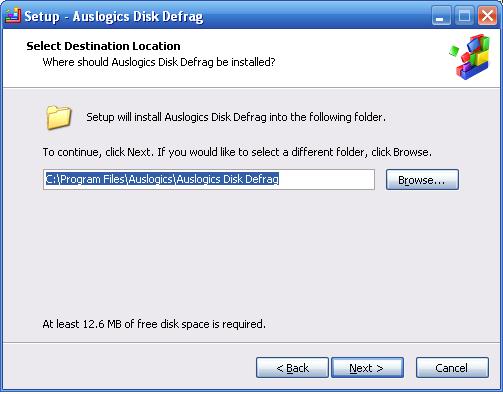
Once CCleaner has been installed it is time to install Auslogics Disk Defrag. This is a great program and is a lot better than the Disk defragger that comes standard with Windows. This is also the program that will speed up the computer the most. Once the install is started click next on the first window, Then click on the button that says "I accept the License agreement" and click next. You can now select where you want to install the program.
I usually change this to my faster E: drive but you can leave it on the standard C: drive and it will work fine. If you don't have enough free space on the C: drive then you can change the location by clicking the browse button. Once you are happy with where it is going to install click the next button three times and it will start the install. Once it has finished installing un-tick the "Launch Auslogics Disk Defrag" button so that it doesn't load up. Then click the finish button.


Running CCleaner
Now comes another easy part. Open up CCleaner so that you are at this stage.
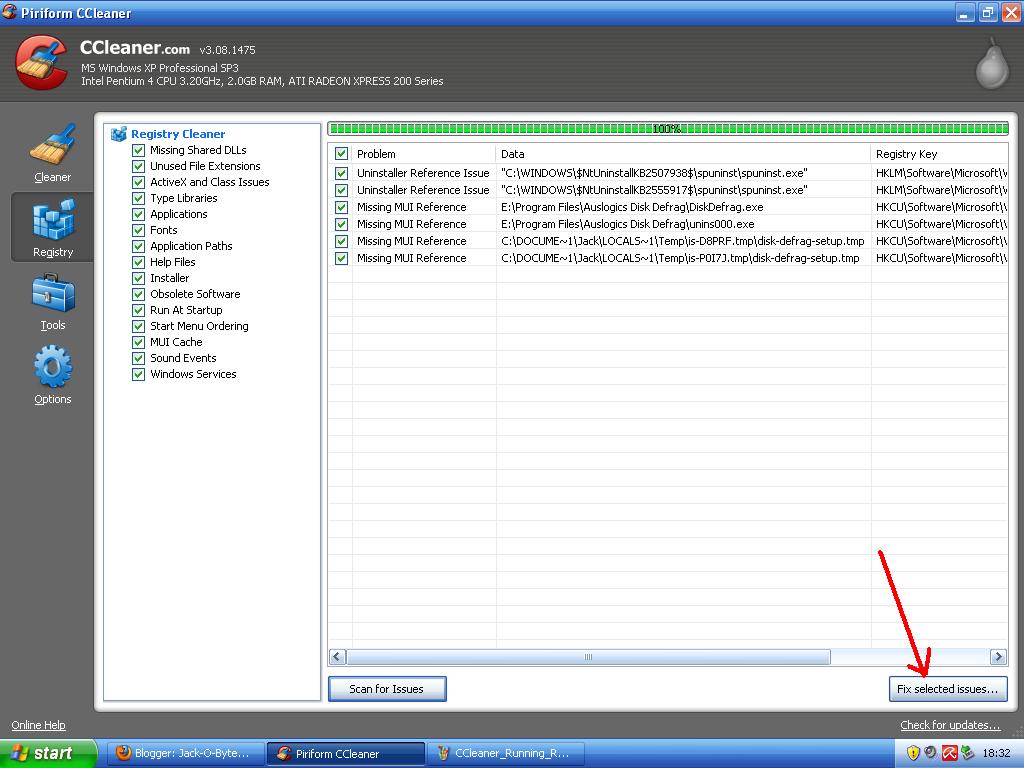
Once you are hear you can select and de-select as many of the options as you want on the left hand side. I usually tick all of them apart from the "Wipe free space" as that way you free up the most space possible. If you don't know what any of the things are it is best to keep them set to standard. Once you are happy with the selection click on the "Run cleaner" button in the bottom right of the program. You will be told that this will delete items on your computer. Click OK. This will start the cleaner. Depending on how much junk there is on your computer this could take a long time to complete. The longest I have seen was about 10 minutes. Once that has completed click on the "Registry tab" on the left hand side. This is shown by the arrow on the image below.
Once the tab is open then you can click the "Scan for issues" button that is in the bottom middle of the program. Shown by the arrow below.
Once that scan has completed a list will appear of the damaged registry files.You will now need to click on the "Fix selected issues" button in the bottom right of the program. This is shown by the arrow in the image below. It will ask if you want to backup your registry click yes and then save the file somewhere in your documents.
Once this has been completed we are finished with CCleaner and can now move onto defragging the hard drive. This will speed up the computer if it hasn't been done before as it will arrange the files on your hard drive so that they are not spread out and so that they load quicker.

Running Auslogics Disk Defrag
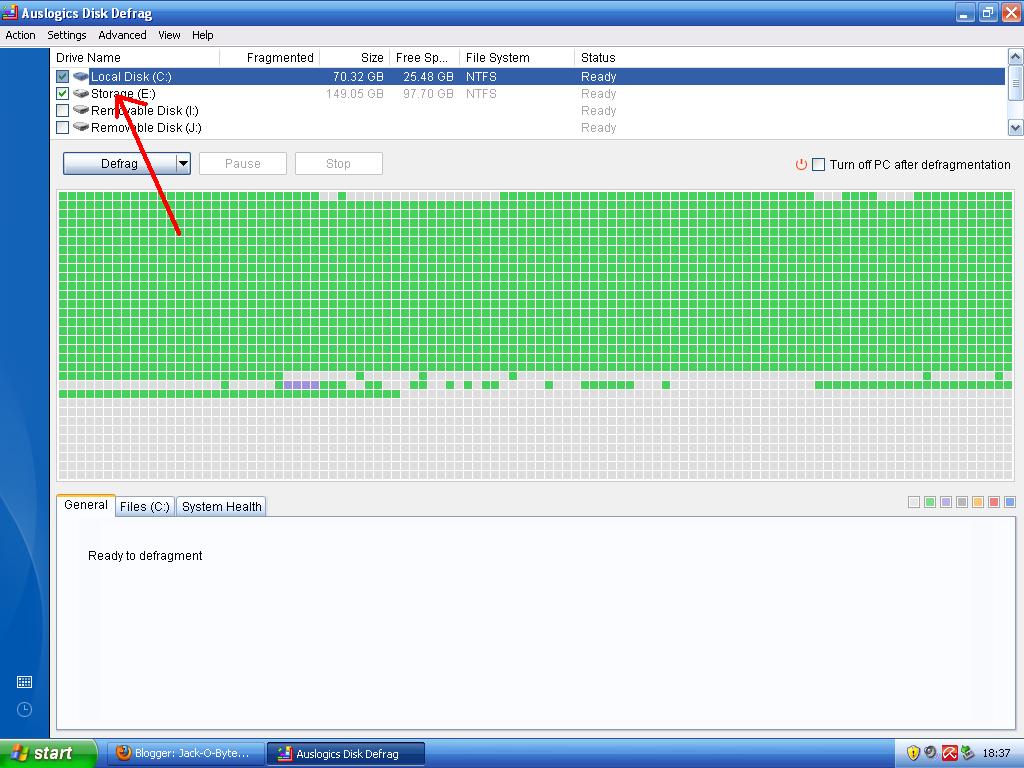
Open up Auslogics Disk Defrag and then select the drives that you use from the list at the top of the program.
Once you are happy with the drive selection simply click on the "Defrag" button or if you want you can hold the arrow down next to the "defrag" button and select "Defrag and Optimize" This will arrange the files in order of when they are needed so that windows loads up quicker and acts more responsive.
Once you have clicked on the button it will start defragging your computer. This could take anywhere between 10 minutes to 4 hours and depending on how long it runs will make a lot of difference to the performance of your PC. If it takes a long time then there was a lot to be defragged and it will speed up the PC loads. Once that program has finished defragging your computer you should have a much faster and smoother running PC. You will most likely notice the speed difference as well.
Thanks for reading and I hope that you have found these instructions useful.

Related Articles;
How to speed up your computer using freely available programs - Old Version of this post

Tuesday, 1 February 2011

An analysis of gaming performance on Windows 7 SP1

So you're a Windows 7 user and you thank Microsoft every day for creating something that has gotten you off Windows Vista. Almost 18 months on and loads of little updates later, we finally find ourselves greeted with the first Service Pack for the operating system.
So it's got a list of fixes etc. - But we only really care about one thing when it comes to the new service pack. Is our gaming experience going to be any better? - It's not uncommon for a major release like this to offer us some free performance, and that's exactly what we intend to find out today; if we're able to get some.

Read the full review here.
www.customdesktops.moonfruit.com